English
 العربية
 Bahasa Indonesia
Search results
How to Compress Images Online Without Losing Quality
Learn to reduce image file sizes by up to 80% while maintaining visual quality using our free online tool
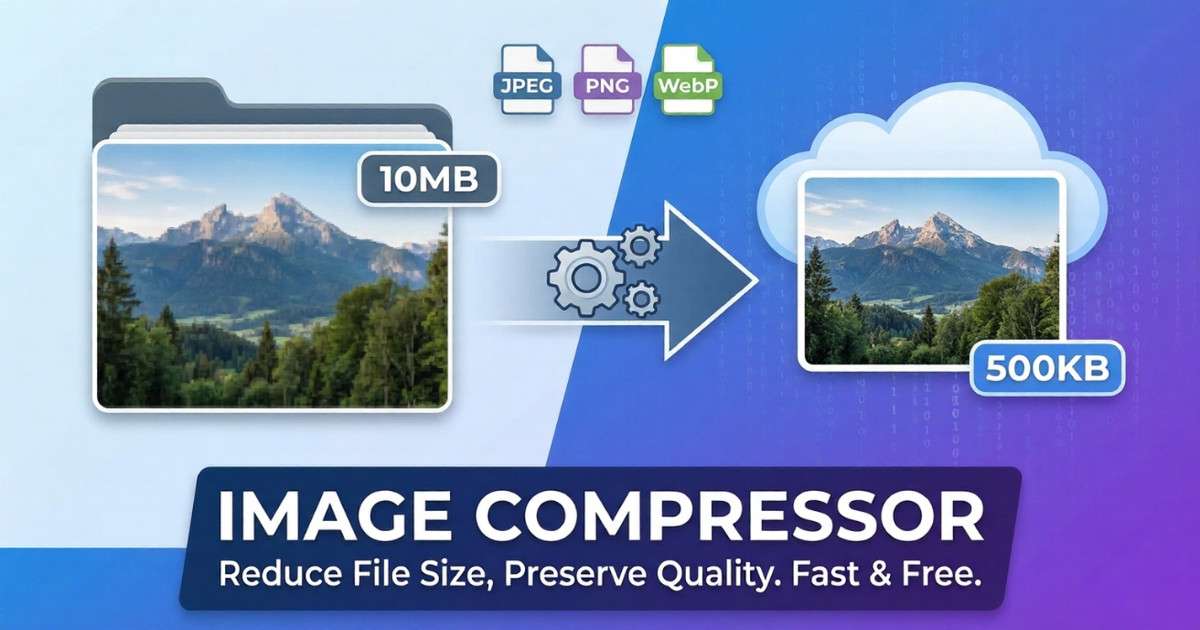
Large image files slow down websites, fill up storage, and make sharing difficult. Our Image Compressor tool helps you reduce file sizes by up to 80% while maintaining excellent visual quality—all directly in your browser.
Why Compress Images?
Image compression is essential for:
- Faster Website Loading: Compressed images load quicker, improving user experience and SEO rankings
- Reduced Bandwidth: Smaller files mean lower hosting costs and faster downloads
- Email Attachments: Stay within email size limits when sharing photos
- Storage Optimization: Save space on your device or cloud storage
- Social Media: Meet platform upload requirements while maintaining quality
How Our Image Compressor Works
Unlike other tools that upload your images to remote servers, our compressor works entirely in your browser. This means:
- Complete Privacy: Your images never leave your device
- Faster Processing: No upload/download wait times
- No File Limits: Process up to 20 images at once
- Works Offline: Once loaded, works without internet
Step-by-Step Guide
Step 1: Upload Your Images
Drag and drop images directly onto the upload area, or click to browse your files. You can select multiple images (up to 20) at once. Supported formats include JPEG, PNG, WebP, and GIF.
Step 2: Adjust Compression Settings
Use the quality slider to control compression level:
- 80-100%: Minimal compression, highest quality (best for professional photos)
- 60-80%: Balanced compression (recommended for most uses)
- 40-60%: Higher compression, smaller files (good for web thumbnails)
- Below 40%: Maximum compression (only for size-critical situations)
Step 3: Choose Output Format
Select your preferred output format:
- Original: Keep the same format as input
- JPEG: Best for photographs and complex images
- PNG: Best for graphics with transparency
- WebP: Modern format with excellent compression (recommended)
Step 4: Optional Resizing
Reduce dimensions for additional file size savings:
- No Resize: Keep original dimensions
- 50%: Half the original size
- 75%: Three-quarters of original
- Custom: Set specific maximum width/height
Step 5: Compress and Download
Click "Compress All" to process your images. Watch the real-time stats showing original size, compressed size, and savings percentage. Download files individually or use "Download All" to get a ZIP archive.
Pro Tips for Best Results
- Start with higher quality: Begin at 80% and decrease if needed
- Use WebP format: It offers 25-35% better compression than JPEG
- Resize large images: A 4000px photo displayed at 800px wastes bandwidth
- Batch process: Compress multiple images at once to save time
- Check the preview: Always verify quality before downloading
Compression Results Comparison
Typical results you can expect:
- JPEG photos: 60-80% size reduction
- PNG graphics: 40-70% size reduction
- WebP conversion: Additional 25-35% savings
Try It Now
Ready to optimize your images? Use our free Image Compressor tool now—no registration required, completely free, and your images stay private.