English
 العربية
 Bahasa Indonesia
Search results
M3U8 Downloader 2.0: Download HLS Videos Easier Than Ever
Major update with built-in CORS proxy, custom headers support, video preview, and batch downloads

M3U8 Downloader 2.0: Download HLS Videos Easier Than Ever
Last updated: December 2024
We are excited to announce a major update to our M3U8 Downloader tool! This update brings powerful new features that make downloading HLS streaming videos simpler, faster, and more reliable than ever before. Whether you are saving educational content, archiving your own videos, or downloading streams you have permission to access, this update has you covered.
What is New in This Update?
This is not just a minor patch - it is a complete overhaul of how the M3U8 Downloader works. Here are the highlights:
- Built-in CORS Proxy - No more browser extensions needed for most downloads
- Multiple Proxy Options - 4 different CORS proxy servers for reliability
- API / URL Parameters - Automate downloads with direct URL parameters
- Custom Headers Support - Send Referer, Authorization, and other headers through the proxy
- Video Preview - Preview your downloaded video before saving
- Real-time Progress - Watch download progress with speed and ETA estimates
- Auto-retry Failed Segments - Automatically retries failed downloads up to 10 times
- Direct MP4 Output - Downloads are saved directly as MP4 files
- Batch Download Mode - Download up to 10 videos at once
NEW: API / URL Parameters Support
One of the most requested features is now available! You can pre-fill the M3U8 URL and automatically select a CORS proxy using URL parameters. This is perfect for automation, browser bookmarklets, or integrating with other tools and scripts.
API Format
https://www.coontool.com/m3u8-downloader?q={M3U8_URL}&p={PROXY}
Parameters
| Parameter | Description | Example |
|---|---|---|
q or url | The M3U8 URL (must be URL-encoded) | q=https%3A%2F%2Fexample.com%2Fvideo.m3u8 |
p or proxy | CORS Proxy selection | p=coontool |
Available Proxy Values
| Value | Proxy Selected |
|---|---|
coontool, bypass1, 1, recommended | Bypass CORS 1 (Recommended) |
bypass2, 2 | Bypass CORS 2 |
allorigins, bypass3, 3 | Bypass CORS 3 (AllOrigins) |
bypass4, 4 | Bypass CORS 4 |
none, direct, off | No proxy (direct connection) |
Example URLs
With CoonTool proxy (recommended):
https://www.coontool.com/m3u8-downloader?q=https%3A%2F%2Fexample.com%2Fplaylist.m3u8&p=coontoolDirect connection (no proxy):
https://www.coontool.com/m3u8-downloader?q=https%3A%2F%2Fexample.com%2Fplaylist.m3u8&p=noneUsing numeric shorthand:
https://www.coontool.com/m3u8-downloader?q=https%3A%2F%2Fexample.com%2Fplaylist.m3u8&p=1Create a Browser Bookmarklet
You can create a bookmarklet that sends any M3U8 URL to CoonTool with one click. Add this as a bookmark:
javascript:(function(){var url=prompt("Enter M3U8 URL:");if(url){window.open("https://www.coontool.com/m3u8-downloader?q="+encodeURIComponent(url)+"&p=coontool");}})();Integration Examples
The API makes it easy to integrate with other tools:
- Browser Extensions: Send detected M3U8 URLs directly to CoonTool
- User Scripts: Add download buttons to video pages
- Automation: Generate download links programmatically
- Share Links: Create pre-configured download links to share
Understanding M3U8 and HLS Streaming
Before diving into more features, let us understand what M3U8 files are and why downloading them can be tricky.
What is M3U8?
M3U8 is a playlist file format used by HTTP Live Streaming (HLS), a protocol developed by Apple for streaming video content. Unlike traditional video files that come as a single download, HLS videos are broken into small segments (usually 2-10 seconds each) that are downloaded and played sequentially.
Why is Downloading M3U8 Challenging?
Downloading HLS streams presents several challenges:
- Multiple Files: A single video might consist of hundreds of small segment files
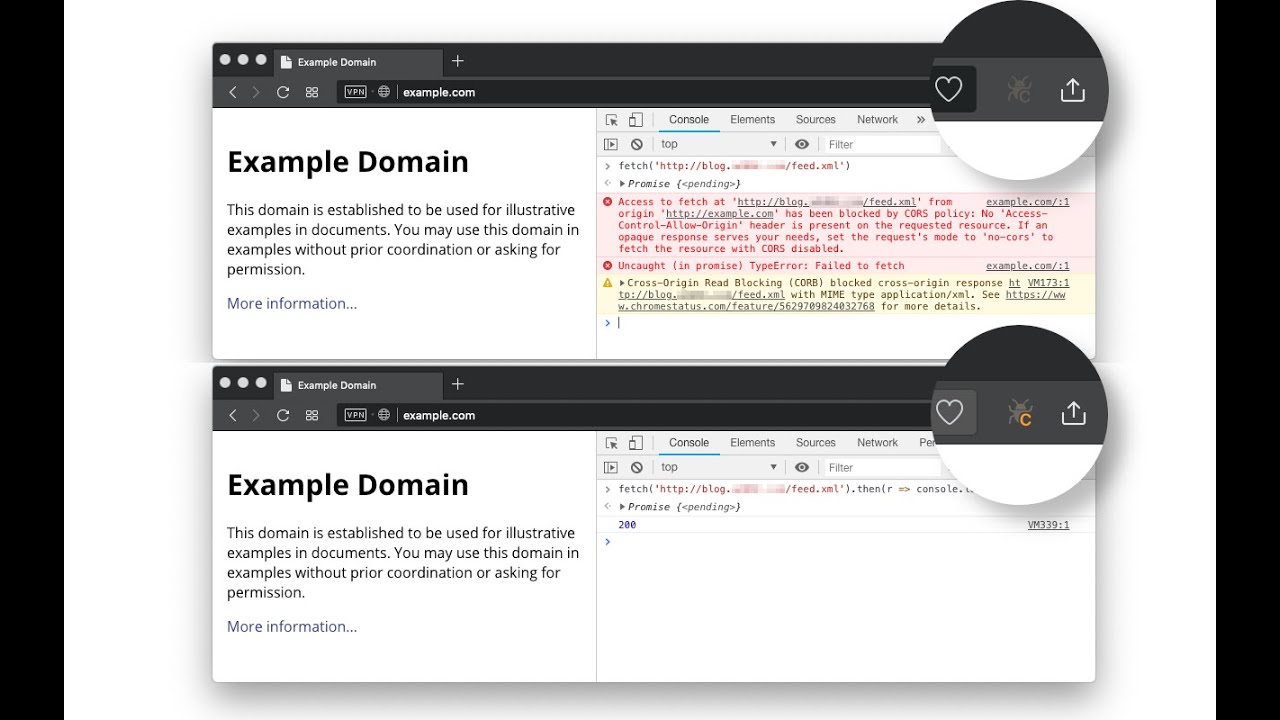
- CORS Restrictions: Browsers block requests to different domains for security
- Header Requirements: Some servers require specific headers like Referer
- Combining Segments: The downloaded segments need to be merged into one video
Our M3U8 Downloader handles all of these challenges automatically!
Feature Deep Dive
1. Built-in CORS Proxy Options
The biggest improvement in this update is our built-in CORS Proxy system with multiple server options. Previously, users had to install browser extensions or manually configure their browsers to bypass CORS restrictions. Now, it is as simple as selecting a proxy from the dropdown menu.
We provide 4 different proxy servers for maximum reliability:
- Bypass CORS 1 (Recommended) - Our primary Cloudflare-powered proxy
- Bypass CORS 2 - Secondary Cloudflare proxy
- Bypass CORS 3 - AllOrigins public proxy
- Bypass CORS 4 - Additional backup proxy
2. Custom Headers Support
Some streaming servers require specific HTTP headers to allow access. Common examples include:
- Referer: The URL of the page that should be accessing the video
- Authorization: Bearer tokens or API keys
- User-Agent: Specific browser identification
3. Video Preview
After your download completes, you can preview the video directly in your browser before saving it.
4. Real-time Progress Tracking
The new progress display shows you exactly what is happening during your download with segments completed, download speed, and ETA.
5. Batch Download Mode
Need to download multiple videos? Switch to the "Batch Download" tab and paste up to 10 M3U8 URLs (one per line).
Step-by-Step Guide: How to Download M3U8 Videos
Step 1: Find the M3U8 URL
- Opening your browser Developer Tools (F12)
- Going to the Network tab
- Playing the video on the source website
- Filtering by "m3u8" in the search box
- Copying the URL that ends in .m3u8
Step 2: Open the M3U8 Downloader
Navigate to CoonTool M3U8 Downloader or use the API URL directly.
Step 3: Configure and Download
- Paste the URL or use
?q=YOUR_URL&p=coontool - Select CORS Proxy if needed
- Click Download and wait for completion
- Preview and save your MP4 file
Troubleshooting Common Issues
| Problem | Solution |
|---|---|
| CORS Error | Select "Bypass CORS 1" from the dropdown, or try other proxy options |
| 403 Forbidden | Add a Referer header with the original website URL |
| Proxy Not Working | Try a different proxy option (Bypass CORS 2, 3, or 4) |
| Download Stalls | Check internet connection; tool auto-retries up to 10 times |
Browser Compatibility
- Chrome (version 89+) - Recommended
- Firefox (version 89+)
- Edge (version 89+)
- Safari (version 15+)
Try It Now
Ready to download your first HLS video? Head over to the M3U8 Downloader and give it a try. With the new API support, built-in CORS proxy options, and custom headers, most videos can be downloaded with just a few clicks - or even automated with URL parameters!
Quick Start with API:
https://www.coontool.com/m3u8-downloader?q=YOUR_M3U8_URL&p=coontool